This is default featured post 1 title

Go to Blogger edit html and find these sentences.Now replace these sentences with your own descriptions.This theme is Bloggerized by Lasantha Bandara - Premiumbloggertemplates.com.

This is default featured post 2 title

Go to Blogger edit html and find these sentences.Now replace these sentences with your own descriptions.This theme is Bloggerized by Lasantha Bandara - Premiumbloggertemplates.com.

This is default featured post 3 title

Go to Blogger edit html and find these sentences.Now replace these sentences with your own descriptions.This theme is Bloggerized by Lasantha Bandara - Premiumbloggertemplates.com.

This is default featured post 4 title

Go to Blogger edit html and find these sentences.Now replace these sentences with your own descriptions.This theme is Bloggerized by Lasantha Bandara - Premiumbloggertemplates.com.

This is default featured post 5 title

Go to Blogger edit html and find these sentences.Now replace these sentences with your own descriptions.This theme is Bloggerized by Lasantha Bandara - Premiumbloggertemplates.com.

Showing posts with label Tips-Tricks. Show all posts

Friday, January 6, 2012

বাড়িয়ে নিন র‍্যামের গতি

পুরনো দিনের কিছু র‍্যাম
উইন্ডোজ বাবহারের ফলে অনেক নিস্ক্রিয় প্রোগ্রাম র‍্যামে জমা হয়, যা পিসির গতি কমিয়ে দেয়। এ রকম হলে আমরা সাধারণত পিসি রিস্টার্ট করে র‍্যাম পরিস্কার ছাড়াই র‍্যামের অসার প্রোগ্রামগুলো সরিয়ে নিতে পারেন। এ জন্য ডেস্কটপে ফাকা জায়গায় মাউস রেখে ডান ক্লিক করে New--> shortcut এ যান। এখন যে ফাকা বক্সটি আসবে সেখানে নিচের কোডটি হুবহু লিখুনঃ  %windir%\system32\rundll32.exe advapi32.dll.ProcessldleTasks
এবার Next নির্বাচিত করে clear ram নামে নতুন একটি শর্টকার্ট আইকন এসেছে। লক্ষ্য করুন, ডেস্কটপে নতুন আইকন এসেছে। এই আইকনটিতে দুই ক্লিক দিলেই র‍্যামের অসাড় প্রোগ্রাম দূর হয়ে যাবে। prothom-alo

Wednesday, December 28, 2011

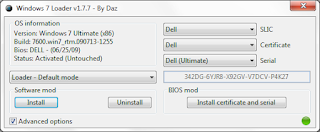
উইন্ডোস অ্যাক্টিভেটর (এক্সপি,ভিস্তা এবং ৭)

undefined
undefined

যদি দুর্ঘটনাক্রমে মনিটর স্ক্রীণ অন্ধকার হয়ে Windows is not genuine দেখায় তাহলে নীচের ফাইলগুলো

উইন্ডোস এক্স পি এর জন্য

 WGAPluginInstall

উইন্ডোস ৭ এ

RemoveWAT.2.2.5.zip

ইন্সটল করে পিসি রিস্টার্ট দিন মামলা খাল্লাস!

সবথেকে ভালো হয় অরিজিনাল ওএস ব্যাবহার করা। সেটা টাকা দিয়েই কিনতে হবে এমন না।ইঞ্জিনিয়ারিং(প্রকৌশল) বা ম্যাথ এর ছাত্ররা Microsoft এর MSDNA অফারে ফ্রী এক্সপি,ভিস্তা অথবা ৭ লাইসেন্স কপি চালাতে পারবেন। এছাড়াও আর কিছু সফট ও ইউস করতে পারবেন।আর অফারে কোয়ালিফাই না করলে কোন বন্ধুর (কোয়ালিফাইড) কাছ থেকে সংরহ অন্য কারো কাছ থেকে কম দামে বা কিনতে পারেন। যেমন আমি NSU এর এক ছাত্রের কাছ থেকে ভিস্তা কিনে চালাচ্ছি।সবাইকে ধন্যবাদ এবং আজকের জন্য বিদায়।

অবশ্যই নেট কানেকশন এবং অ্যান্টি ভাইরাস অফ করে নিবেন এবং ভিস্তা ও ৭ এর ক্ষেত্রে সাধারণ ডাবল ক্লিকে কাজ না হলে Run as Admin দিতে হবে। 


source techtunes.com.bd

Tuesday, July 5, 2011

ইনস্টল করেন উইন্ডোজ এক্সপি ১০ মিনিটের কম সময়ে


 ইনস্টল করেন উইন্ডোজ এক্সপি ১০ মিনিটের কম সময়ে | Techtunes
অনেকের হয়তো জানা আছে তবু ও শেয়ার করছি নতুনদের কাজে লাগতে  পারে।
এই ছোট টিপ যারা ​​প্রায়ই উইন্ডোজ এক্সপি অপারেটিং সিস্টেম ইনস্টল করেন তাদের জন্য খুব সহায়ক হবে. সাধারণত অপারেটিং সিস্টেম ইনস্টলেশনের সময় 40 মিনিট পর্যন্ত সময় নেয়, কিন্তু এই  টিপস এর মাধ্যমে আপনি এখন 10 মিনিট  করতে পারবেন.
১. উইন্ডোজ এক্সপি সিডি দিয়ে বুট করান।
২. পরে সম্পূর্ণরূপে সব ফাইল লোড হলে , আপনি পার্টিশন নির্বাচন অপশন পাবেন.“c”.নির্বাচন করুন.
৩. এখন পার্টিশন টি  ফরম্যাট ফরম্যাট করেন  স্বাভাবিক NTFS বা FAT
৪।একবার ফরম্যাট সম্পন্ন হলে সেটআপ ইনস্টলেশনের জন্য আবশ্যক সব ফাইল কপি করা হয় আপনার সিস্টেম পুনরায় Restart নিবে অথবা আপানে এন্টার টিপে Restart করান।
এখন এখানে থেকেই 10 মিনিট  এ কাজ করানো  শুরু.
৫. পুনরায় বুট করার পরে, আপনি একটি পর্দা দেকতে পাবেন অপারেটিং সিস্টেম ইনস্টলেশন শেষ হতে 40 মিনিট সময় লাগবে।
নিচের ছবির মত
windows xp pro vmware player 1 ইনস্টল করেন উইন্ডোজ এক্সপি ১০ মিনিটের কম সময়ে | Techtunes
৬. এখন Shift + F10 প্রেস কী চাপেন  প্রর্দশিত হবে কমান্ড প্রম্পট.
৭.Enter “Taskmgr” কমান্ড প্রম্পট উইন্ডোর এ.নিচের ছবির মত একটি  টাস্ক ম্যানেজার খুলবে.
25 265x300 ইনস্টল করেন উইন্ডোজ এক্সপি ১০ মিনিটের কম সময়ে | Techtunes
৮. প্রসেস ট্যাবে ক্লিক করুন >এখানে  setup.exe বাহির করেন>Setup.exe উপর রাইট ক্লিক করুন> Set Priority > নির্বাচন করেন  High or Above Normal।
সমস্ত সম্পন্ন ..!!!
আর কিছু করতে হবে না এবার দেখুন কিভাবে দ্রুত ইনস্টলেশন প্রক্রিয়া সমাপ্ত হয়।
ভাল করে লিখতে পারি নাই ভুল হলে ক্ষমা করবেন সবাই।


Read more: http://techtunes.com.bd/tips-and-tricks/tune-id/78623/#ixzz1RIfNGpzG

Tuesday, June 21, 2011

পিসির হার্ডওয়্যার কনফিগারেশন দেখার পদ্ধতি

পিসির হার্ডওয়্যার কনফিগারেশন দেখার সহজ  পদ্ধতি বা উপায় হলো ডেক্সটপ বা যে কোন স্থানে একটি নতুন টেক্সট প্যাড খোলা এবং তা খালি রেখেই info.nfo নামে সেভ করা। info.nfo না লিখে hardwareinfo.nfo etc লিখলে ও হবে। তবে সবসময় .nfo format টিক রাখতে হবে। ফাইলটি .nfo format এ সেভ করার পর তা একটি নীল স্ক্রিন যুক্ত একটি মনিটর আইকনে পরিনত হবে। এবং তাতে ডাবল ক্লিক করলেই কম্পিউটারের যাবতীয় তথ্য যানা যাবে।প্রেগ্রামটি তৈরী করার জন্য ডেক্সটপে রাইট ক্লিক করে নিউ>>টেক্সট ডকোমেন্ট এ ক্লিক করে info.nfo নামে সেভ করে নীল স্ক্রিন যুক্ত মনিটর টিতে তাতে ডাবল ক্লিক করলেই কম্পিউটারের যাবতীয় তথ্য যানা যাবে..

Monday, April 25, 2011

How do I Make my Computer run faster for free


undefined
There may be two reasons why your PC is running slow.
1. You havn’t cleant up your PC for a long time.
2. You have got a virus or spyware on your PC.
I suggest you to run a virus test firstly with your virus scanner:(if you don’t have virus killer, you may try Avast OrKaspersky:
1. Firstly, update your virus scanner database
2. Then run the scanner and check whether you have virus on your PC.
When you find viruses, Kill them!
3.Then Restart your Computer.

Now you’ll find your PC is faster than before,
If not.
You may definetly need to clean up your PC.
Here is instructions about how to clean your PC: http://www.wikihow.com/Clean-Your-Computer
1. Download a nice PC cleaner from http://www.pc-registry-repair.cc
(System cleaner is a best choice)
2. Run the cleaner and clean up your PC.
3. Restart your PC
Source : Yahoo Answers

Keep Your Computer Safe and Healthy with these 12 Amazing Tips


In today’s life, we cannot discard the truth that we are really dependent on the things that our gadgets and computer systems can offer us. But even these extraordinary equipments that made our lives easier have their own drawbacks and limitations. I do not feel that you would wish that your computer system should cost you high expenses in a very short amount of time. So I have explained some helpful and useful tips that can keep your computer systems healthy and in ideal running condition for a very long time.

1. Always update your system. Whether you are a Windows or a Macintosh user it is suggested that you do a weekly update for you systems to keep up with the latest patches that your system provider can offer.
2. Have reliable anti-virus software installed in your system. Be sure to update your anti-virus and have a weekly scan check for viruses in your computer systems.
3. Have tune-up software installed in your system and have it run weekly. This software helps you in cleaning your system making it more efficient and accelerates your system’s performance.
4. Have spyware prevention software installed into your system. You may be virus free, but spywares are also one of the major causes for your systems to break down.
5. Always keep a backup for your important files. In this way you can be sure that if your system fails, you still have a chance to restore the files you have lost.
6. As much as possible be organized on your files and folders. Believe it or not, a messy desktop or a hard drive that is not partitioned can affect your system’s performance. So I advice you have a partition on your hard drives and keep your files and folders in the most organized way as possible.
7. Be sure about the software that you install. Check it’s system requirements whether it is compatible with your system or not.
8. Be careful in downloading stuffs from the internet. Specially the free ones.
9. Computers may be super machines built to serve mankind, but it also needs rest. Give your systems a break, a chance to cool down.
10. A computer is composed of both hardware and software, so check you hardware too. Some of computer problems are not caused by viruses; instead they are caused by glitches on your hardware. So it is advised to check your hardware too.
11. Have a power regulator. This will assure that your computer gets regular flow of power. Too much of it or lack of it may affect your computer’s performance and may lead to serious problems.
12. Defrag your system every once in a while. Doing this can help your computer function more efficiently.
Article Source: http://EzineArticles.com/?expert=Pinky_Mcbanon